Workflow Automation for Small Business: 5 Use Cases
Explore workflow automation for small business with five useful use cases, from lead routing to support triage, and see where owner-led teams can save time.

Workflow automation for small business works best when it takes a repeat task off an owner’s plate without losing control of the result. These five use cases cover sales, office admin, and customer support, with notes on where a person should still step in. At Huge AI, we help owners find which parts of their business AI can run before they spend a dime building anything.
1. Lead Qualification and Routing: Get New Inquiries to the Right Person
Lead qualification and routing automation reads a new inquiry, checks it against your business rules, then sends it to the right person or queue. It’s a fit for service firms that get leads through forms while the team is out on jobs or helping current clients.
Picture a plumbing company with separate teams for service calls and major projects. A new request comes in for a kitchen remodel. The workflow can identify the service type, collect the location and timing details, then alert the person who handles estimates. A routine repair request can follow a different path.
The useful change is the handoff. A lead doesn’t have to sit in a shared inbox until someone has time to read it, decide who owns it, and forward it. The system can send an acknowledgment while a staff member reviews the request and takes responsibility for the next step.
Start with rules your team already uses. For example, route by service area or job type. Mark a request for review if key details are missing. Send an urgent alert only when a clear condition applies, such as a requested service date that’s near.
Keep a person involved when a request needs judgment. A message that mentions damage, a safety concern, or a complex insurance question shouldn’t get a confident-sounding answer just because the system can draft one. The workflow should flag it and show the context to the right staff member.
Our overview of business process automation services explains how a mapped workflow can connect lead capture with the work that follows. And a useful lead system should record whether the handoff worked, not just whether an alert went out.
Track the time from inquiry to first human response. Also note leads that had no clear owner. Those two checks can tell you whether routing is fixing a real bottleneck.
A new lead shouldn’t need the owner to play dispatcher. But the person who knows the customer and the job should still make the call when the request is unusual.
2. Sales Follow-Up Reminders: Keep Promised Follow-Ups from Slipping
Sales follow-up automation turns a promise into a timely task. It suits owners and sales staff who quote work, speak with prospects, or manage renewals, then struggle to remember every next step during a busy day.
After a call, someone records the next action and the date it’s due. The workflow can create a reminder for the owner, or prepare a draft message for review. If the prospect replies or books a meeting, the reminder should stop. Otherwise, it stays visible until a person handles it.
That last part matters. A reminder that keeps firing after a customer has replied creates noise. A message sent automatically without checking the current conversation can feel careless. Use automation to keep the commitment visible, then choose carefully which messages can go out on their own.
For example, an electrical contractor sends an estimate after visiting a site. The follow-up task can be set for the date agreed with the customer. If the customer asks for a change, the next message needs a human review. If there’s no reply, a polite check-in can be drafted with the estimate details for approval.
The time you get back depends on how many follow-ups you handle and how much manual tracking you replace.
Before you automate a send, decide what the system may say, how many reminders are appropriate, and when a staff member must take over. A short guide to implementing business automations can help frame that work as a repeatable process instead of a string of disconnected alerts.
Measure follow-ups completed on time and reminders that needed correction. If your team spends more time clearing alerts than speaking with prospects, simplify the rules.
3. CRM Updates from Call Notes: Keep Pipeline Records Current
CRM update automation turns call notes into a draft record, so sales staff don’t have to retype the same details after every conversation. It’s useful for small teams where the owner sells, manages service, and still has to keep the pipeline current.
After a call, a system can pull out the main request, the customer’s stated timing, and the agreed next action. It can prepare those details for the relevant CRM fields. A staff member checks the summary before it becomes the record other people rely on.
That review step protects the meaning of the conversation. A prospect saying “we might be ready next month” is not the same as a firm purchase date. A request to send an updated quote is not an approval to change the deal stage. Keep the original note available so a reviewer can check the summary against what was said.
It also helps to define the fields before building the workflow. Decide what counts as a next step. Agree on how your team records a lost deal or a request that’s still in early research. If each person uses different labels, automation may make the records look tidy without making them useful.
Here’s a simple review habit: check a few updated records each week. Look for incorrect dates, missing owners, or summaries that change a customer’s meaning. Fix the rule when you see the same mistake more than once.
Huge AI helps owners map these handoffs before deciding what to automate. Our focus is on building and operating the workflow for you, rather than leaving you with another system to manage.
A clean CRM record is only useful if the team trusts it. Keep human review in the path until summaries are accurate enough for the way your team works.
4. Invoice Processing: Reduce Repetitive Entry for Contractors and Service Firms
Invoice processing automation reads details from an invoice and prepares them for review or entry into the accounting workflow. It’s a fit for contractors and service firms that handle vendor bills in PDFs, scans, or paper form.
A typical flow starts when an invoice arrives by email or upload. The system reads fields such as the supplier, invoice number, due date, and total. It can then prepare a draft entry for a staff member to check before posting or sending it for approval.
Make exceptions easy to spot. A duplicate invoice, an unexpected total, or a supplier detail that doesn’t match the business record should go to a person. Don’t let a document-reading system approve a payment just because it found the right-looking fields.
For a trades business, this could mean a stack of material bills gets sorted into a review queue rather than keyed in one at a time. The owner or bookkeeper can focus on mismatches and approvals instead of copying every line by hand. The accounting system should remain the record of truth.
Invoice volume, document quality, and the share of exceptions will affect the time you get back.
Start by measuring how long invoice entry takes now. Include the time spent fixing errors and asking staff to clarify a charge. Then compare that baseline with the time spent reviewing automated entries.
For firms that need outside help to define deliverables and review points, a scope of work template can help make the agreed work clear before a build begins. That’s especially useful when invoice rules differ by job, vendor, or approval role.
Set a clear approval limit and keep payment release under your existing controls. Faster data entry is helpful. A mistaken payment is not.
5. Support Ticket Triage: Prioritize Messages That Need Attention
Support ticket triage sorts incoming messages by topic or urgency, then directs them to an owner. It’s useful for local service firms and small support teams that receive requests through email, forms, or a shared inbox.
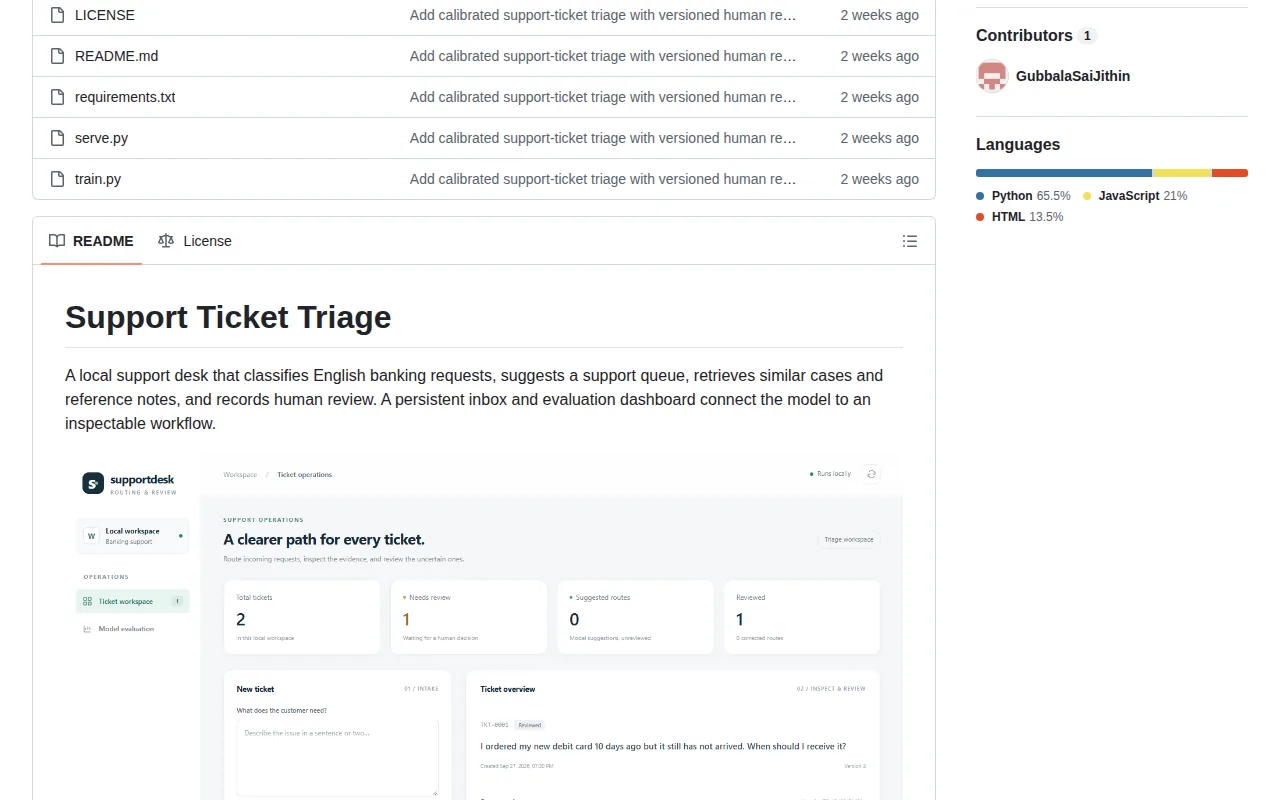
The workflow can label a message as a booking request, a billing question, or a complaint. It can also flag a message that needs quick human attention. A staff member should still review urgent or sensitive cases before a reply goes out.
Think of a property manager who receives a repair request after hours. A routine question about access can go to the right queue. A report of a leak or a safety concern should be flagged for prompt review under the business’s own rules. The labels need to match how the team actually handles these cases.
Start with a small set of categories. If every slight difference gets its own label, staff may spend their day sorting labels instead of solving problems. Include an “other” or “needs review” path for messages the system can’t confidently classify.
The time saved depends on message volume and how much time your team currently spends opening, reading, and forwarding each request.
Check both missed alerts and misrouted messages. If the same type of request keeps landing with the wrong person, update the category rules. For a complaints process, add a clear route to a person rather than letting an automated draft stand in for a real response.
Good triage makes the next human action obvious. It shouldn’t hide a customer’s concern inside a label.
FAQ
What is workflow automation for a small business?
Workflow automation for a small business uses software or AI to move a repeat task through agreed steps with less manual handling. A form can trigger a lead assignment, for example. The right setup still keeps a person in control of decisions that affect a customer, payment, complaint, or regulated service.
What should a small business automate first?
Start with a task that happens often, follows clear rules, and has an outcome you can check. Lead routing, follow-up reminders, or invoice entry may be good candidates. Measure the time and errors involved today, then compare those figures after a small, reviewed rollout.
Can AI automate customer follow-up?
Yes, AI can help draft or send routine follow-up when the message and timing follow rules your business has approved. It should stop when the customer replies or the situation changes. Keep a person responsible for messages about complaints, sensitive account details, or unusual requests.
How do I keep automated workflows accurate?
Use a human review path for uncertain cases, then check a sample of completed work on a regular schedule. Watch for wrong routes, mistaken summaries, and outdated answers. When you find a repeated error, change the rule or source content rather than asking staff to work around it.
How can a small business estimate time savings?
Record how often the task happens and how long staff spend on it before automation. After launch, track the same measures along with review time and errors. Reported savings from other workflows can help set a question to test, but they aren’t a forecast for your business.
Conclusion
Pick one workflow where repeated handoffs or data entry eat into the day, then measure the result before expanding. Huge AI’s free 45-minute AI Growth Roadmap gives you a same-day report with prioritized fixes and estimated time and dollar impact. We build and operate done-for-you AI, so start by booking the roadmap before you spend on a build.
Want an AI employee that answers every lead instantly?
That's what we build at Huge AI. One flat plan, no fine print.
See pricing →